Getting started with Kodra Play
Kodra Play shows a short game in a popup on your store. Visitors enter their email, play paddle, flipper or pong and win a unique discount code. This guide takes you from install to your first results.
- 1
Install the app
Open Kodra Play on the Shopify App Store, click Install and approve the app in your Shopify admin. You start on the Free plan.
Prefer a hand? After you install, we can set up your first popup for free. Email info@enigma101.com.
- 2
Turn on the app embed
Kodra Play works with any Online Store 2.0 theme through an app embed. In your Shopify admin go to Online Store > Themes > Customize > App embeds, switch on Kodra Play and save.
- 3
Set up the discount
Open Kodra Play in your Shopify admin and edit your popup. Choose what the winner gets:
- Discount code type:
- "Unique single-use code per winner": each winner gets their own code, valid for one order.
- Discount:
- For example a percentage off the order.
- Code prefix:
- The start of every code, for example WIN.
- Reward by attempt:
- A better discount for winning on the 1st attempt than on the 2nd or 3rd.
- Urgency countdown (minutes):
- Each code really expires after this many minutes and a live countdown is shown. 0 turns it off.
- Fallback shared code:
- Optional. Used only if a unique code cannot be created.
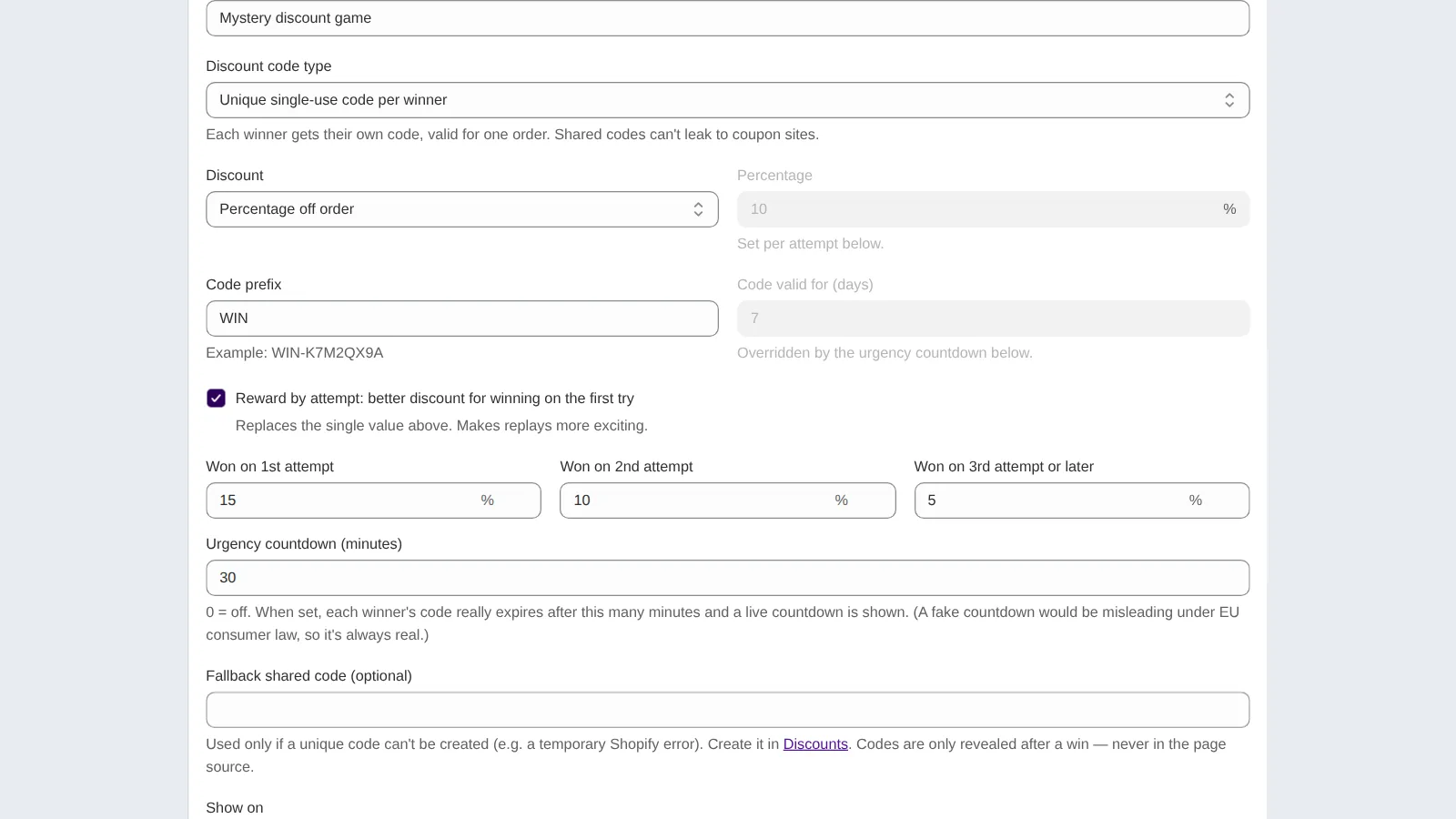
Better rewards for winning on the first try - 4
Choose the game and when it shows
In the Game tab:
- Game:
- Paddle, flipper or pong.
- When to show the popup:
- For example exit intent or a delay, whichever comes first.
- How often to show it automatically:
- For example once per visit. After a win the popup does not open by itself again.
- Popup delay and survive time to win:
- In seconds.
- Ball speed and max attempts:
- A slower ball means more winners.
- Floating button:
- Lets visitors who closed the popup come back to the game, and reminds winners of their code.
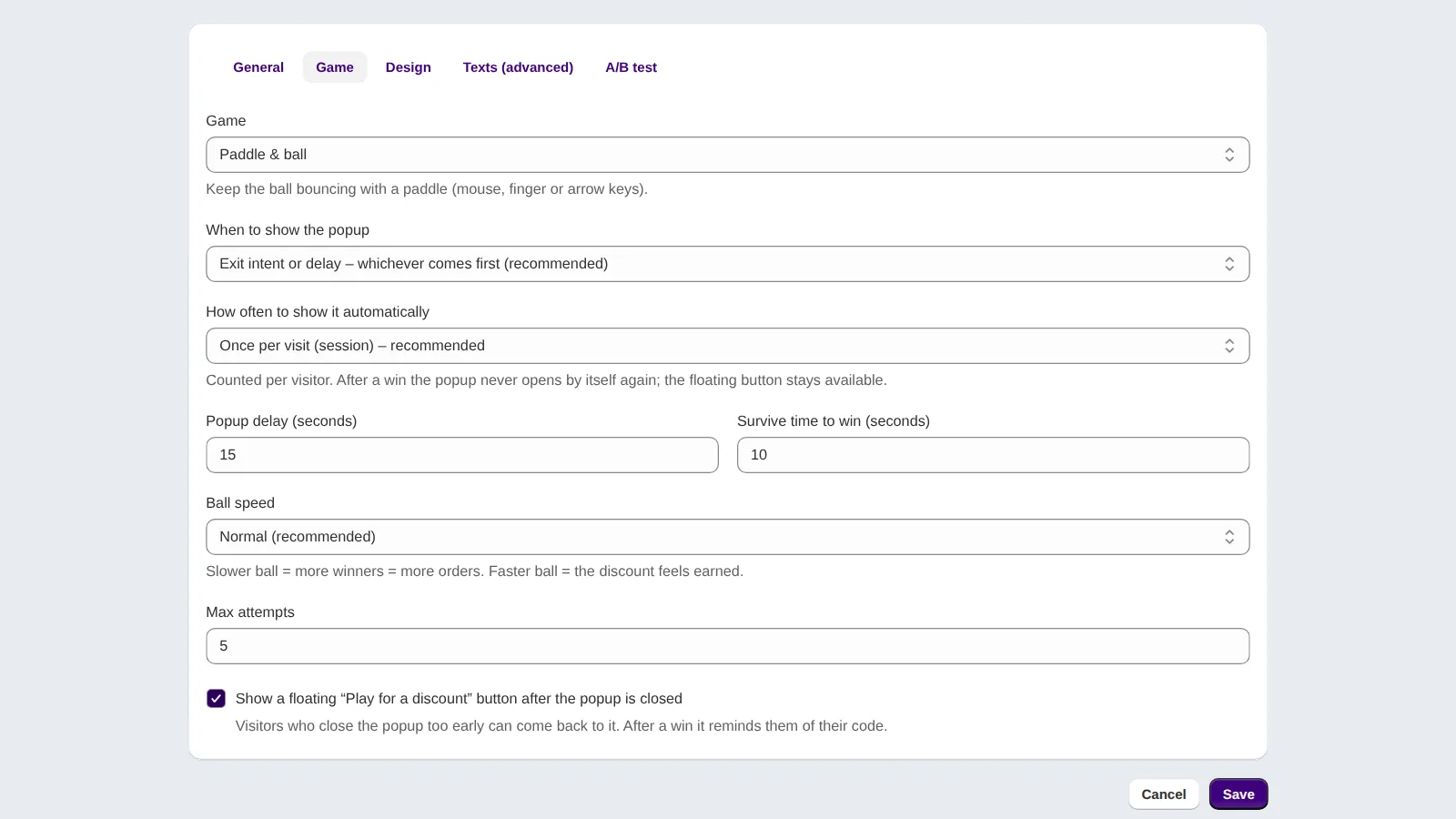
Exit intent trigger and a floating reopen button - 5
Match your brand colors
In the Design tab click "Use my store colors" to read your theme and fill both colors, then adjust them if you like. You can also set the popup size for desktop and phones and check the desktop and phone preview. No coding needed.
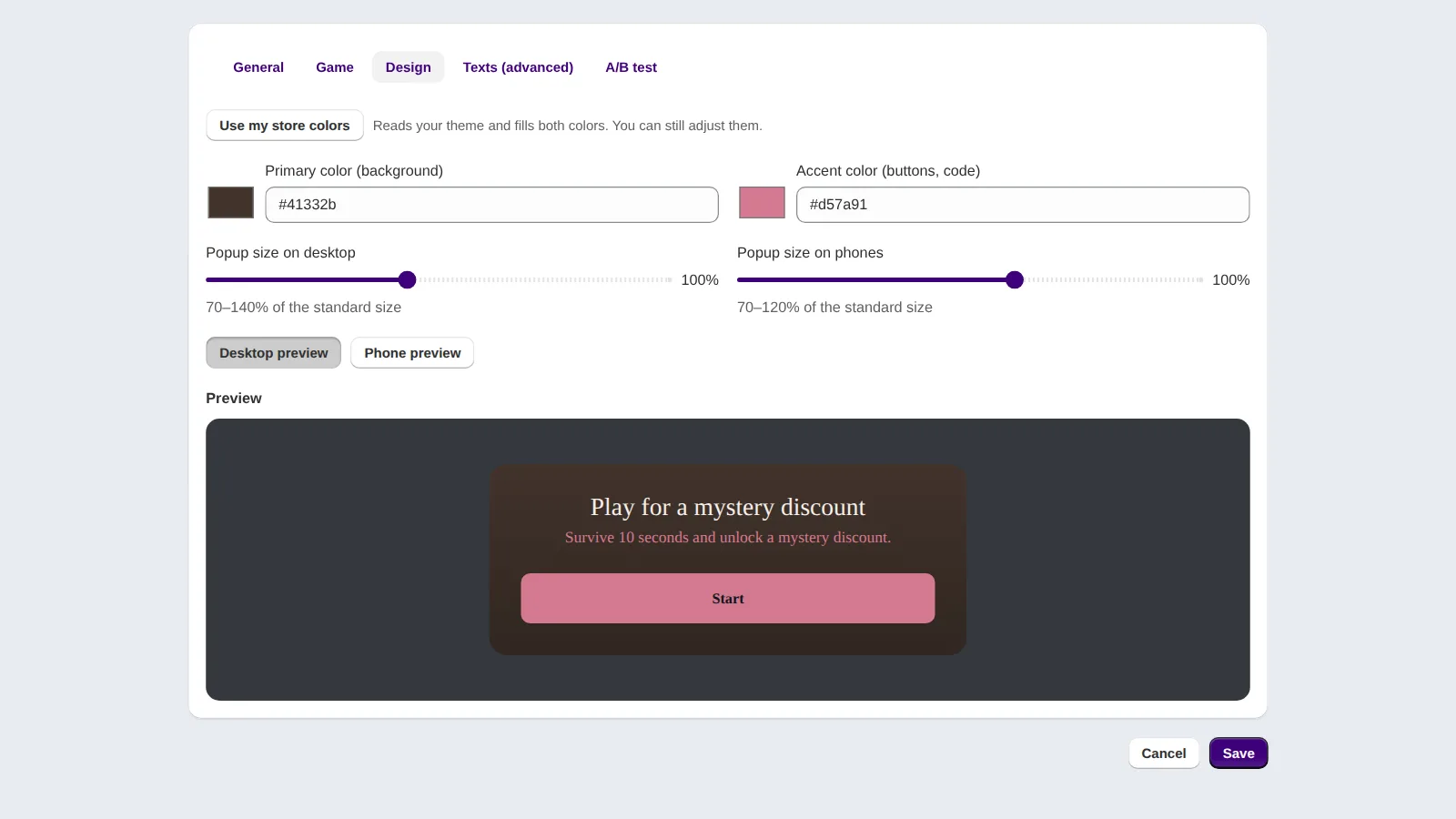
Match your brand colors, no coding needed - 6
Texts, languages and A/B tests
Change the popup wording in the Texts (advanced) tab. The storefront popup is available in 10 languages: English, German, French, Spanish, Italian, Dutch, Polish, Slovenian, Croatian and Romanian. Use the A/B test tab to test popup variants against each other.
- 7
Use the emails you collect
Every email is saved as a customer in your Shopify store, with marketing consent when the visitor opts in. Double opt-in is optional; Shopify then sends the confirmation email. Email marketing tools that sync customers from Shopify can use them from there.
- 8
Track your results
The analytics show revenue from the popup, popup views, starts, emails, games played, wins and code uses for a date range, per popup, desktop vs phone, by traffic source and by country.
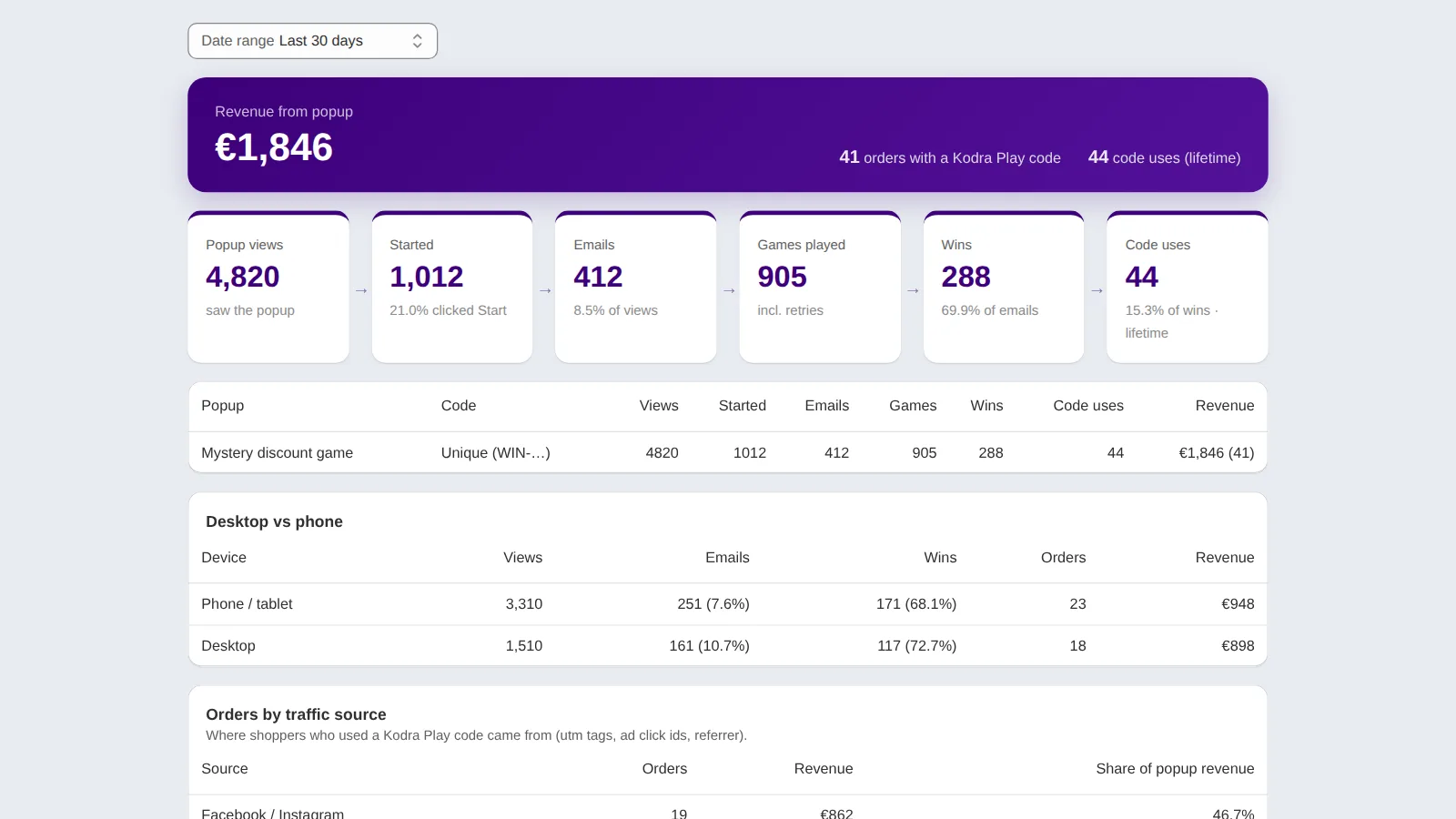
Track emails, wins and revenue per popup (demo numbers)